See how bookings and revenue change over time.
What This Page Is About
The Reports Page allows you to generate detailed booking and payment reports based on different filters.
You can export the report in CSV or XLSX format for accounting, performance tracking, and business analysis.
This page helps you understand:
How many bookings you received
How much revenue was generated
Which services performed best
Which team members worked the most
Customer type performance
Payment completion patterns
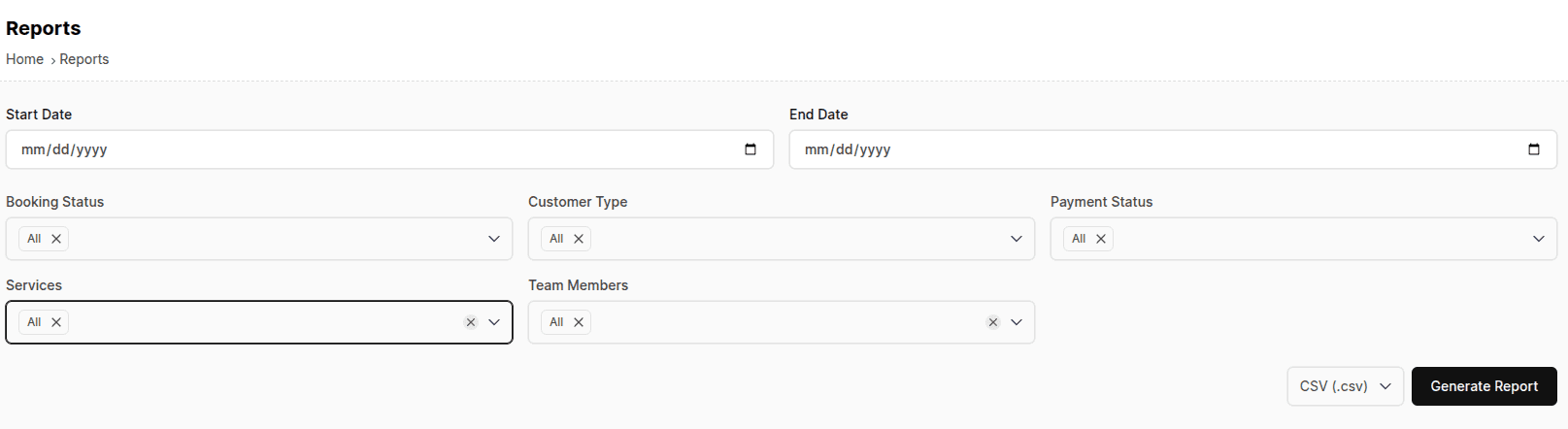
Page Layout Overview
On this page, you’ll find:
A set of filters to customize your report
An export format selector (CSV or XLSX)
A Generate Report button to download your data
There is no table shown on this page — reports are downloaded directly as a file.
Filters Available
You can filter your reports using the following fields:
A. Start Date & End Date
Choose the time period for your report.
Examples:
Custom date range
Only bookings/payments inside this date range will be included.
B. Booking Status
Filter based on booking state. Options include:
Confirmed
Cancelled
All
Use this to see only confirmed bookings or analyze cancellations.
C. Customer Type
Filter bookings based on customer origin:
All
Register
Guest
Helps measure customer engagement.
D. Payment Status
Filter by payment completion level:
All
Pending
Partial Paid
Paid
Overpaid
Useful for financial reconciliation.
E. Services
Select one or multiple services you want the report for.
Examples:
Haircut
Cleaning Service
Consultation
Selecting multiple is allowed.
F. Team Members
Filter bookings handled by specific team members.
Useful for:
Staff performance
Workforce analysis
Commission-based work
Selecting multiple is allowed.
Export Options
On the right side, you can choose the file format:
1. CSV (.csv)
Lightweight
Supported by all systems
Opens in Excel, Google Sheets, Numbers, etc.
2. XLSX (.xlsx)
Native Excel format
Supports rich formatting & large data
Better for accountants
Choose the format you prefer before generating the report.
How to Generate a Report
Select the Start Date
Select the End Date
Apply any filters you want (optional)
Choose export type (CSV or XLSX)
Click Generate Report
Your file will download immediately.
Report Contents
The exported report may include:
Booking ID
Customer name
Customer contact
Service name
Booking date
Assigned team member
Total amount
Payment amount
Payment status
Booking status
Customer type
Created date
This allows complete analysis of your business activity.
Tips & Best Practices
Use specific date ranges (like monthly) for cleaner reports
Filter by team member to measure performance
Filter by service to find your top-selling services
Use XLSX format for large datasets
Keep reports organized by saving them in folders like “January Reports”, “Q1 Reports”
Use payment status filters to match with your bank or Stripe/PayPal statements
Common Questions (FAQ)
Q. Can I view reports inside the dashboard?
No. Reports are downloaded as files.
Q. What if no data matches the filters?
You will get an empty report file.
Q. Can I generate reports for a single day?
Yes. Set Start Date = End Date.
Q. Why is payment missing for some bookings?
Because payment might be:
Pending
Partial
Customer chose pay later
Q. Does the report include refunded amounts?
Refund data may appear as negative or separate entries depending on how refunds were processed.
Related Pages
Need Help
If you need assistance, contact support or use the in-app chat.