See every payment taken through your bookings.
What This Page Is About
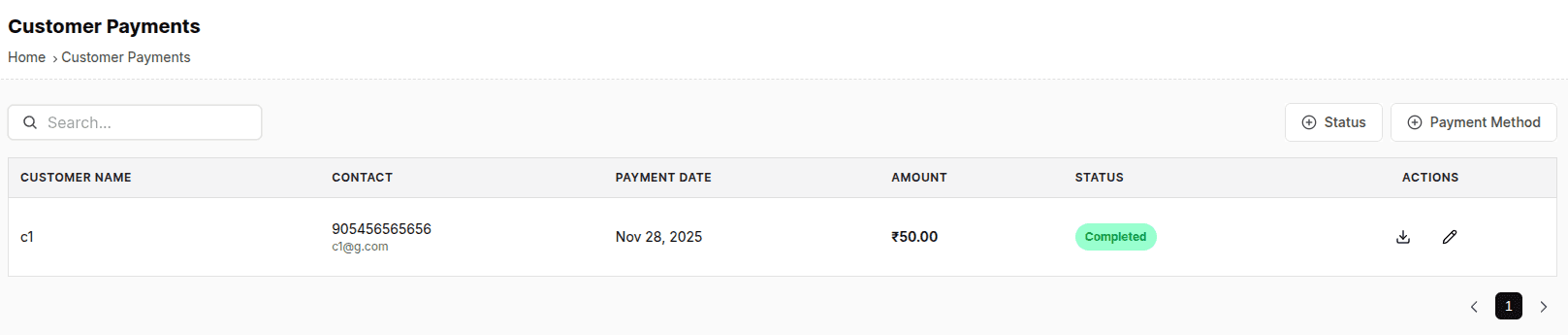
The Customer Payments page shows a complete list of all payments made by customers across all bookings.
This includes payments from:
Calendar → Take Payment
Bookings Page → Take Payment
Online payment links
Cash or other payment methods
This page is mainly for tracking, viewing, downloading receipts, and editing payment details.
There is no Add Payment button here — payments can only be added through the booking system.
Page Layout
This page contains a single table listing all customer payments.
Each row shows the following details:
A. Customer Name
Name of the customer who made the payment.
B. Customer Details
Shows whichever information is available:
Email
Phone number
Or both
C. Amount
The amount paid by the customer in that transaction.
D. Status
Payment status, such as:
Pending
Failed
Completed
(Status depends on how your system records payment events.)
E. Actions
Each payment entry has two actions:
1. Download Receipt
2. Edit Payment
Action Buttons
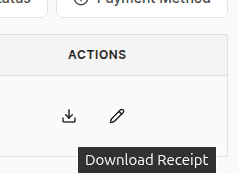
1. Download Receipt
Downloads a PDF receipt of that payment
Used for customer requests, audits, or bookkeeping
Contains booking ID, payment amount, payment method, timestamp, and customer details
2. Edit Payment
Clicking Edit opens an Edit Payment Modal where you can modify:
Transaction ID (Editable)
Payment Method (Editable)
Cash
Online
Other
Notes (Editable)
Fields You Cannot Edit:
Amount
Date & time of payment
Booking ID
Customer details
These fields are locked to preserve financial integrity.
After updating allowed fields, click Save.
Important Notes
Payments cannot be created on this page
Payments can only be added through:
Booking Page → Take Payment
Calendar Page → Take Payment
Editing is restricted to prevent financial manipulation
Downloading receipts helps for finance, GST, and reconciliation
Refunds are not issued here — they happen from the Booking Details → Past Payments → Refund section
Tips & Best Practices
Always update transaction IDs if incorrect — it helps during audits
Add notes when editing payments for transparency
Use the Download button for sharing invoices with customers
Use customer details to quickly identify payments or resolve issues
Keep this page clean by verifying payments immediately after receiving them
Common Questions (FAQ)
Q. How do I add a new payment?
You cannot add payments here.
Use the Take Payment feature inside a bookings edit page or calendar page.
Q. Can I change the payment amount?
No. Amount cannot be edited for security reasons.
Q. How do I refund a payment?
Go to:
Booking Page (find the relevant order that you want to refund) →Click Edit button (pencil icon) → Past Payments → Refund
Q. Why does customer detail show only email or phone?
It depends on what was available at the time of payment.
Q. Why is a payment marked as partial or overpaid?
Based on total booking amount vs payment received.
Q. What if the transaction ID was entered wrong?
Edit the payment and correct the Transaction ID field.