Add services with a price, duration and team members.
What This Page Is About
The Services page allows you to create, manage, update, duplicate, and delete all services offered by your business.
If no services exist, a first-time setup card will be displayed allowing you to add your first service. Once services are created, they appear in a service table where you can manage pricing, categories, team member assignments, and availability.
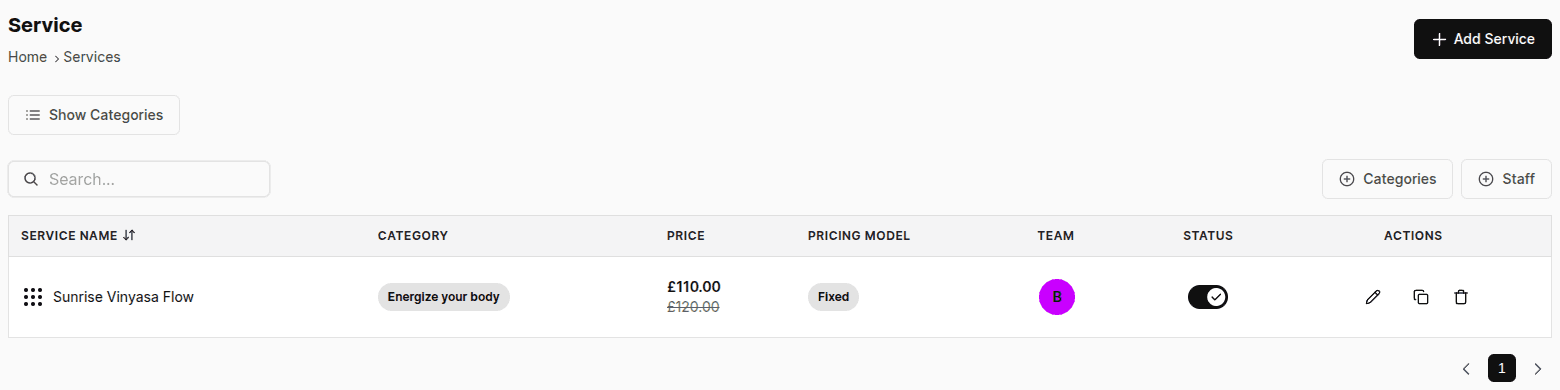
The service table displays:
Service Name
Category
Price
Price Type
Team Member Status
Available Actions:
Edit
Delete
Copy
Supported Price Types:
Fixed – Standard service price
Free – No charge
Custom – Price determined later
A search option may also be available to help locate services quickly.
When You Should Use This Page
Use this page when:
You want to add a new service
You need to update service details
You want to modify pricing or payment options
You need to assign or remove team members
You want to duplicate an existing service
You need to temporarily hide or permanently remove a service
You want to organize services into categories
What You Can Do Here
Using the Services page, you can:
Create services
Edit service information
Delete services
Copy existing services
Configure pricing and payment preferences
Manage service duration and scheduling rules
Assign categories and team members
Add service images and badges
Control service visibility
Preview service cards for desktop and mobile
Service Management
A. Create a Service
The Create Service page allows you to add a new service and configure all booking, pricing, and display settings.
Service Information
Images
Desktop Image (4:3 ratio)
Mobile Image (1:1 ratio)
Basic Details
Service Name (Required)
Highlighted Text
Description
Duration Settings
Service Duration
Buffer Duration
Price Type
Choose one:
Fixed
Free
Custom
Payment Preference
Choose one:
Full Payment
Partial Payment
Pay Later
Pricing Fields
For Fixed Price services:
Sales Price
Regular Price
Deposit Amount (Partial Payment only)
For Free services:
Price Text
For Custom services:
Custom Label
Quantity Settings
Enable Allow Quantity to let customers book multiple units.
Options include:
Quantity affects pricing
Quantity does not affect pricing
Scheduling methods:
Fixed Duration
Sequential Duration
Progressive Duration
Additional settings:
Minimum Quantity
Maximum Quantity
Categories
Select one or more categories.
If the required category does not exist, click Add Category.
Team Members
Assign team members who can provide the service.
Card Badges
Examples:
Best Seller
New
Popular
Visibility Options
Show Reviews
Is Active
Service Preview
A live preview is displayed on the right side showing:
Desktop Card Preview
Mobile Card Preview
How to Create a Service
Open Services
Click Create Service
Upload images (optional)
Enter service information
Configure duration and pricing
Select payment preferences
Configure quantity settings if needed
Assign categories
Assign team members
Add badges and visibility settings
Review the desktop and mobile preview
Click Save
The service will be added to your service list.
B. Edit a Service
The Edit Service page allows you to update any service information after creation.
You can modify:
Service images
Service name
Highlighted text
Description
Service duration
Buffer duration
Price type
Payment preferences
Pricing information
Quantity settings
Categories
Team members
Card badges
Review visibility
Active status
How to Edit a Service
Open the Services page
Locate the service in the table
Click the Edit button (Pencil Icon)
Update the required information
Review the service preview
Click Save
Changes are applied immediately.
C. Copy a Service
The Copy feature helps you create a new service using an existing service as a template.
How to Copy a Service
Open the Services page
Locate the service you want to duplicate
Click the Copy button
A new service will be created with the same settings
Update any required information
Upload new images if necessary
Save the service
Note: Images are not copied and must be uploaded separately.
D. Delete a Service
Deleting a service permanently removes it from your services list and prevents future bookings.
How to Delete a Service
Open the Services page
Locate the service
Click the Delete button (Trash Icon)
Confirm deletion
The service will be permanently removed.
Important: This action cannot be undone.
If you only want to temporarily hide the service, disable the Is Active toggle instead.
Service Rules & Validation
The following rules apply when creating or editing services:
Sales Price must be less than or equal to Regular Price
Deposit Amount is only available when Partial Payment is selected
Pricing fields are hidden for Free and Custom services
Full and Partial payments require online payments to be enabled
Price Text is displayed when the service is Free
Custom Label is displayed when Custom pricing is selected
Copied services do not include images
Quantity scheduling follows the selected scheduling method
Tips and Best Practices
Use clear and descriptive service names
Add a short highlighted text to improve visibility
Upload high-quality desktop and mobile images
Review pricing regularly
Keep Sales Price lower than or equal to Regular Price
Use buffer times to avoid scheduling conflicts
Assign the correct category for easier organization
Keep team assignments updated
Use badges such as "Best Seller" or "New" to improve conversions
Use Copy when creating similar services
Use the Is Active toggle instead of deleting services temporarily
Common Questions
Q. Can I create a service without images?
Yes. Images are optional but recommended.
Q. Can I change the price type later?
Yes. All service settings remain editable.
Q. What happens if I choose Custom pricing?
Pricing fields are hidden and customers will see your custom label instead.
Q. Does Copy create an exact duplicate?
Yes, except service images.
Q. Will editing a service affect existing bookings?
Existing upcoming bookings remain unchanged, but future bookings will use the updated service configuration.
Q. Can I restore a deleted service?
No. Deleted services cannot be recovered.
Q. Does deleting a service remove booking history?
No. Historical bookings remain available in records.
Q. Can customers book multiple units of a service?
Yes. Enable Allow Quantity and configure the scheduling rules.
Q. Can I delete multiple services at once?
No. Services must currently be deleted individually.
Related Pages
Need Help
If you need assistance, contact our support team or use the in-app chat.