Choose what each role can see and change.
What This Page Is About
The Roles & Permissions page allows you to control what each team member can access inside your RazorBooking business dashboard.
There are 6 predefined roles, each with different access levels:
Owner
Admin
Manager
Standard Staff
Staff
No Access
Each role appears as a card.
Inside each card, there is an Assign Member button that opens a modal where you can assign users to that role.
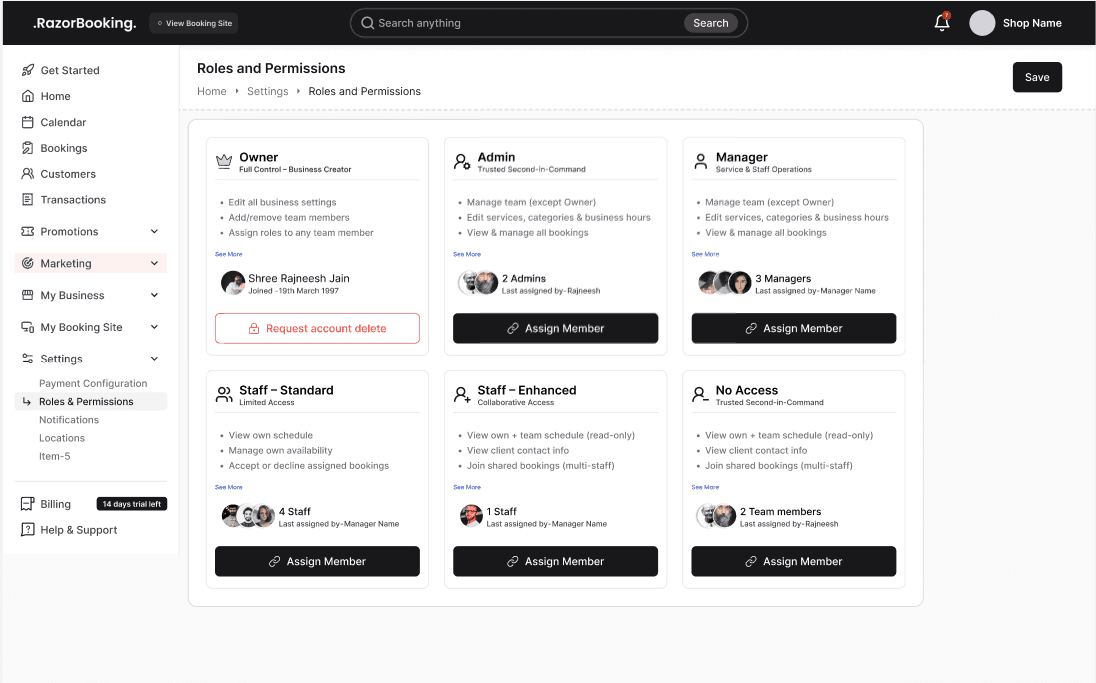
How Assigning Roles Works
The person who created the business account is always the Owner
Owner role cannot be changed
All other roles (Admin, Manager, Standard Staff, Staff, No Access) can be assigned to any user
Clicking Assign Member opens a modal where you select the user and click Save
A user can only have one role at a time
Role Overview
Below is a clear breakdown of what each role can do.
These capabilities are directly taken from the PDF permissions table. RazorBooking_Roles___Permissions
A. Owner (Highest Access)
The Owner has full access to everything in the business:
Manage categories, locations, services
Manage users and their availability
View all reports
Configure settings, integrations, booking page customization
Create, edit, cancel, reschedule bookings
Manage roles and permissions
Owner = Complete access + role management
B. Admin (Full Access Except Role Ownership)
Admins have almost the same access as the Owner except they:
Cannot delete roles
Cannot assign roles
Cannot create/delete roles
Admin permissions include:
Manage categories, locations, services
Manage users and availability
Manage settings & integrations
View all reports
Handle all bookings
Admin = Almost full control, except high-level role operations
C. Manager
Managers have strong operational access but limited administrative control.
Managers can:
View categories, locations, and services
Manage availability
View all reports (except exporting)
Manage booking page content
Manage business hours
Create, edit, cancel, and reschedule bookings
View assigned bookings
Managers cannot:
Create or edit services, categories, or locations
Change settings
Manage users
Manage roles
Manager = Operational leader (no administrative control)
D. Standard Staff
Standard Staff have limited access focused on their own work:
View customer profiles
Manage their own availability
View bookings assigned to them
They cannot:
Create/edit services
View reports
Change settings
Manage business hours
Manage roles
Create/edit/delete categories, locations, or users
Standard Staff = Team member with access only to their assigned bookings
E. Staff
Staff role is even more limited:
Can manage their own availability only
Can view only their assigned bookings
They cannot:
View customers
View services
View reports
Change settings
Create or edit bookings
Do anything outside their assigned work
Staff = Basic access for booking execution only
F. No Access
This role has zero permissions.
A user assigned as No Access:
Cannot log in
Cannot view dashboard
Cannot manage bookings
Cannot perform any action
No Access = Fully restricted
How to Assign a Role
Go to the Roles & Permissions page
Find the role card (Admin, Manager, Staff Standard, Staff Enhanced, No Access)
Click Assign Member
A modal will open
Select the user you want to assign
Click Save to apply the role
The user will instantly receive the permissions of that role.
Tips & Best Practices
Keep one Owner and only a few Admins for security
Assign Manager to team leads who handle daily operations
Assign Standard Staff to active team members who need booking access
Assign Staff to limited-access workers
Use No Access for ex-employees or inactive users
Update roles regularly as your team grows
Only give Admin-level access to people you fully trust
Common Questions (FAQ)
Q. Can I change the Owner role?
No. The Owner is fixed and cannot be reassigned.
Q. Can a user have more than one role?
No. A user can only have one role at a time.
Q. If I assign someone a new role, what happens?
Their old role permissions are replaced instantly.
Q. Can an Admin manage roles?
Admins can manage role permissions, but cannot assign or delete roles. RazorBooking_Roles___Permissions
Q. What is the difference between Standard Staff and Staff?
Standard Staff can view customer profiles and assigned bookings
Staff can only view their assigned bookings and manage their own availability
Q. What happens if I assign “No Access”?
The user cannot log in or access anything.
Q. Why is Assign Member disabled for Owner?
Because the Owner role cannot be changed.
Need Help
If you need assistance, contact support or use the in-app chat.