


See today’s bookings and key numbers when you log in.
What This Page Is About
This is the dashboard page which shows the key information about your business. You can see your daily stats, upcoming bookings, quick buttons for common tasks, and the availability of team members.
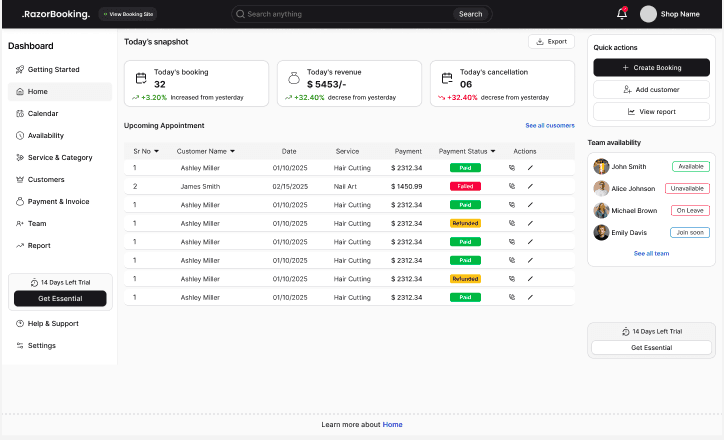
Dashboard Stats Overview

These cards show the key numbers for your business today.
1. Today’s Bookings
What it shows:
The total number of bookings made today
Why it matters:
Helps you track how busy the day is
Gives a quick view of customer activity
2. Today’s Revenue
What it shows:
The total money earned from today’s bookings
Why it matters:
Helps you measure daily performance
Shows how well the business is doing today
3. Today’s Cancellations
What it shows:
The number of bookings cancelled today
Why it matters:
Helps you understand lost bookings
Shows if there are any issues to fix
Quick Actions
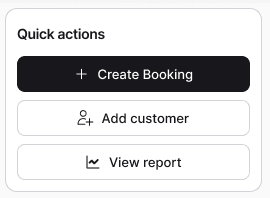
What This Section Shows
This section gives you three buttons to quickly do common tasks:
Create a customer
Add a booking
View a report
Why This Section Matters
Saves time
Reduces extra steps
Lets you take action without moving to other pages
What You Can Do Here
Add a new customer instantly
Create a booking in a few clicks
Check reports anytime
When to Use It
When you need to act fast
When you don’t want to open multiple pages
When there is a new customer or booking
Upcoming Bookings
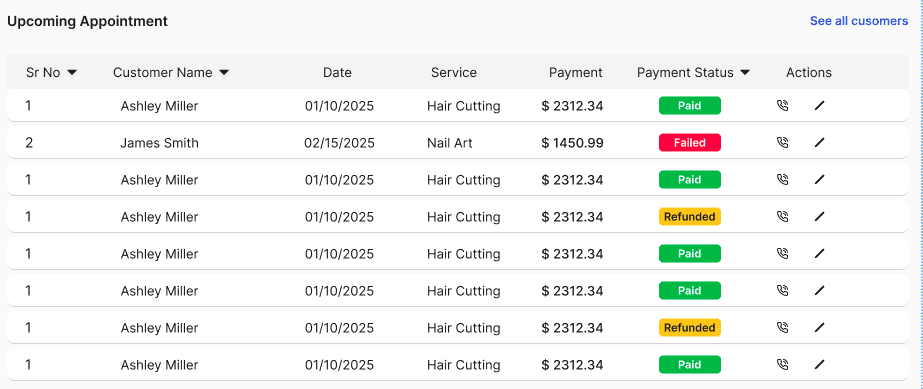
This shows the bookings that are scheduled next.
What you can see:
Customer name
Date and time
Service Details
Amount
Payment status
Edit and Delete booking buttons
Why it helps:
You know what is coming
You can prepare in advance
Team Members Availability
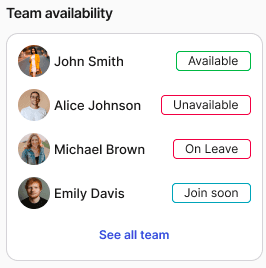
This shows when team members are available for a booking.
What you can check:
Free time slots
Busy or booked times
Why it helps:
Easy to plan bookings
Avoids time clashes
When You Should Use This Page
Use this page when:
You want to quickly check how your business is doing today
You need to see today’s bookings and revenue
You want to know if anyone cancelled a booking today
You want to add a new customer or booking fast
You want to view report
You need a quick overview about upcoming bookings
What You Can Do Here
On this page, you can:
Create a new customer
Add a new booking
View reports
Check today’s bookings
Check today’s revenue
See today’s cancellations
View upcoming appointment dates
How to Do It
A. How to Create a Customer
Go to the Home page
Click on Add Customer
Enter the customer details in customer popup
Click Save
B. How to Add a Booking
Go to the Home page
Click on Create Booking
Enter the booking details on booking pop up
Click Save
C. How to View a Report
Go to the Home page
Click on View Report
Check the report details shown on the report page screen
D. Optional Actions
Check team members availability
View upcoming booking dates
Tips and Best Practices
Check this page every day to stay updated
Use the quick buttons to save time
Review cancellations to improve your service
Assign team members to new task according to their availability
Common Questions
Q. Can I add multiple bookings in a day?
Yes, you can add as many bookings as you need.
Q. Can I edit a booking later?
Yes, you can edit a booking from the booking section.
Q. What if a customer cancels?
The cancellation will show in today’s stats on this page.
Q. Do I need any special setup to use this page?
No, everything is ready to use.
Related Pages
Need Help
If you need assistance, contact support or use the in-app chat.
