


Keep each customer’s details and booking history.
What This Page Is About
The Customers page allows you to manage all customers associated with your business from one central location. You can create new customers, view customer information, update existing records, search for specific customers, and remove customers when they are no longer needed.
If no customers exist, a first-time setup card will be displayed, allowing you to add your first customer. Once customers are added, they will appear in a table where you can easily manage them.
Fig: Customer Page (No Customers)
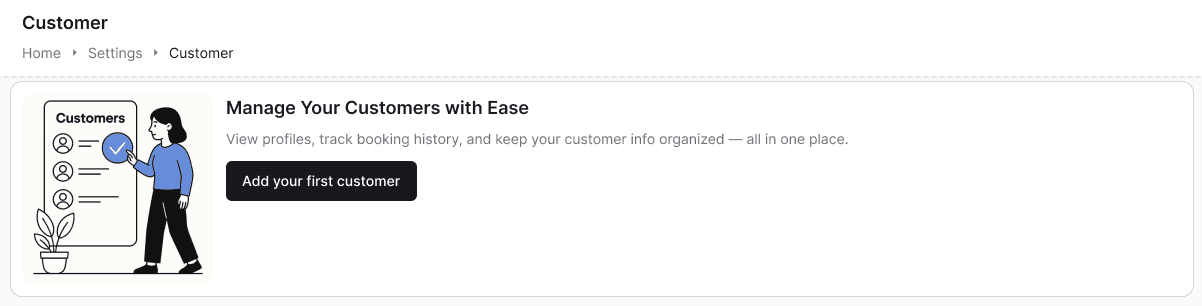
Fig: Customers List
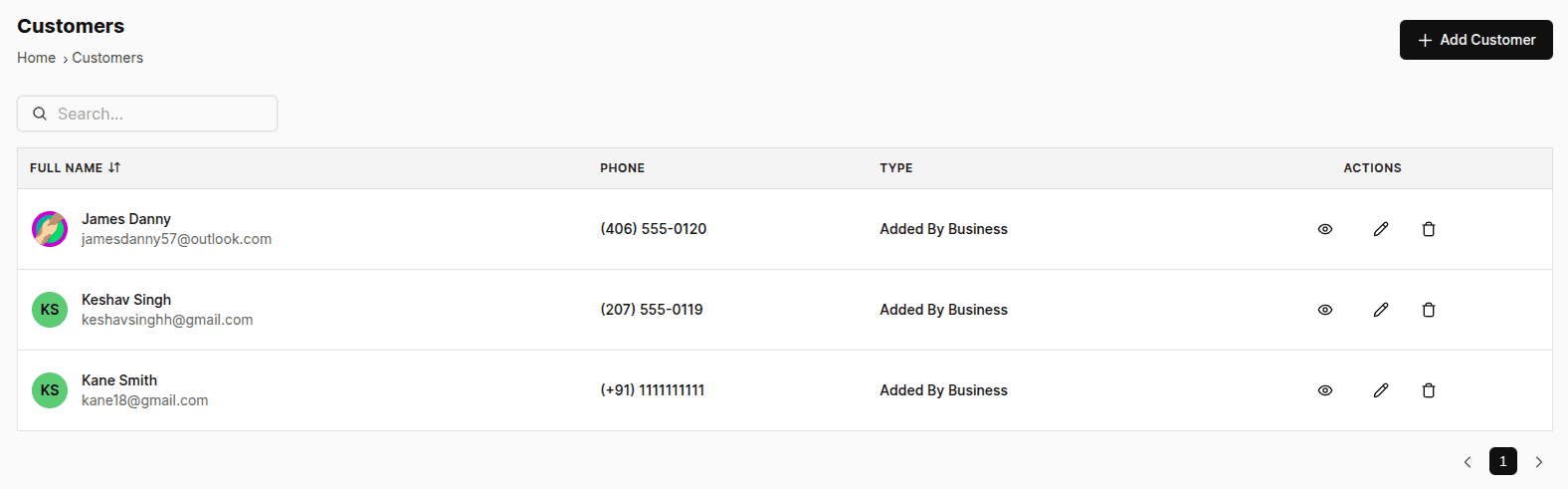
The customer table displays:
Name
Email (if provided)
Phone Number (if provided)
Customer Type:
Backend Guest – Added manually by the business
Frontend Guest – Customer who books using a guest account
Registered – Customer who signs in using email or phone
Available Actions:
View
Edit
Delete
A search bar is also available to help you quickly locate customers.
When You Should Use This Page
Use this page when:
You want to add a new customer manually
You need to store customer information for future bookings or communication
You want to view or update customer details
You need to search for a specific customer
You want to organize customers by type
You need to remove duplicate, outdated, or incorrect customer records
What You Can Do Here
Using the Customers page, you can:
Create new customer records
View detailed customer information
Edit customer details
Delete customers
Upload and manage customer profile images
Add phone numbers and addresses
Store notes and additional information
Search customers by name, email, or phone number
Customer Management
A. Create a Customer
The Create Customer form allows you to add a new customer by entering their details.
Fig: Create Customer
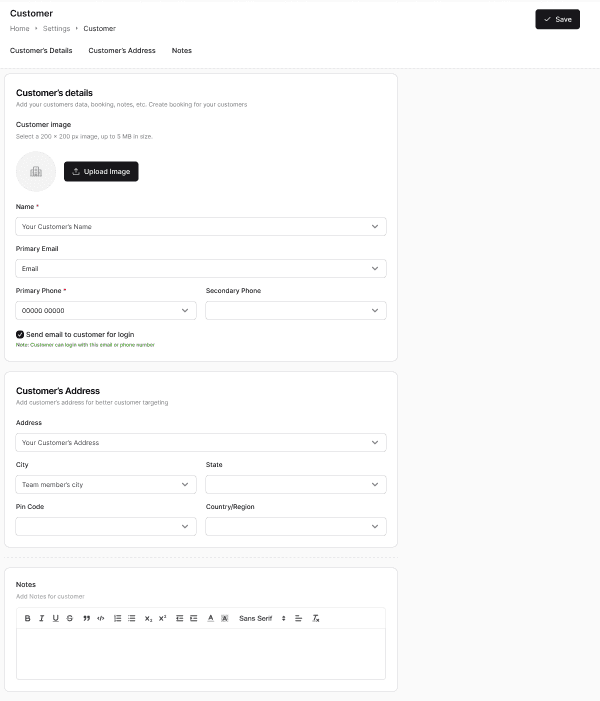
Customer Information Fields
Required Fields
Name
Email
Optional Fields
Profile Image
Primary Phone Number
Secondary Phone Number
Customer Address
Notes
How to Create a Customer
Open Customers → Add Customer
Enter the required information:
Name
Email
Add any optional information:
Profile image
Phone numbers
Address
Notes
Review the information
Click Save
The customer will be added to your customer list.
B. View Customer Details
You can view complete customer information directly from the customer list.
How to View a Customer
Open the Customers page
Locate the customer in the table
Click the View button (Eye Icon)
This will display all available customer information, including contact details, address, notes, and profile image.
C. Edit a Customer
The Edit Customer form allows you to update existing customer information whenever needed.
Fig: Edit Customer

You can modify:
Name
Email
Profile Image
Primary Phone Number
Secondary Phone Number
Address
Notes
How to Edit a Customer
Open the Customers page
Find the customer you want to update
Click the Edit button (Pencil Icon)
Modify the required information
Review your changes
Click Save
The updated information will be saved immediately.
D. Delete a Customer
Deleting a customer permanently removes their information from your customer list.
How to Delete a Customer
Open the Customers page
Locate the customer in the table
Click the Delete button (Trash Icon)
Confirm the deletion
The customer record will be permanently removed.
Important: This action cannot be undone.
Tips and Best Practices
Always keep customer names and contact information accurate
Use the search bar to quickly find specific customers
Add phone numbers whenever available for easier communication
Use the notes section to record customer preferences or important information
Keep profile images updated for easier identification
Regularly review customer records and remove duplicate entries
Encourage customers to register for a smoother booking experience
Update customer information whenever changes occur
Common Questions
Q. Do I need to fill all customer fields?
No. Only the Name and Email fields are required. All other fields are optional.
Q. Can I edit customer information later?
Yes. All customer details can be updated at any time.
Q. Can I add multiple customers?
Yes. There is no limit to the number of customers you can add.
Q. Is a profile image required?
No. Uploading a profile image is optional.
Q. What happens if I delete a customer?
The customer record is permanently removed from your customer list.
Q. Can I recover a deleted customer?
No. Deleted customers cannot be restored.
Q. Will deleting a customer remove their bookings?
Bookings remain in the system for historical purposes, but the customer will no longer appear in your customer list.
Q. Can I delete multiple customers at once?
No. Customers must currently be deleted individually.
Q. Do customer types update automatically?
Yes. Customer types are assigned automatically based on how customers interact with the platform.
Q. Will customers be notified when I edit their details?
No. Changes are saved internally and do not trigger customer notifications.
Related Pages
Bookings – Create and manage customer bookings
Calendar – View upcoming appointments
Team Members – Manage staff interactions with customers
Need Help
If you need assistance, please contact our support team or use the in-app chat for help.Relevant
