


Set weekly shifts and special hours for your team.
What This Page Is About
The Availability page allows you to manage when your business and team members are available for bookings.
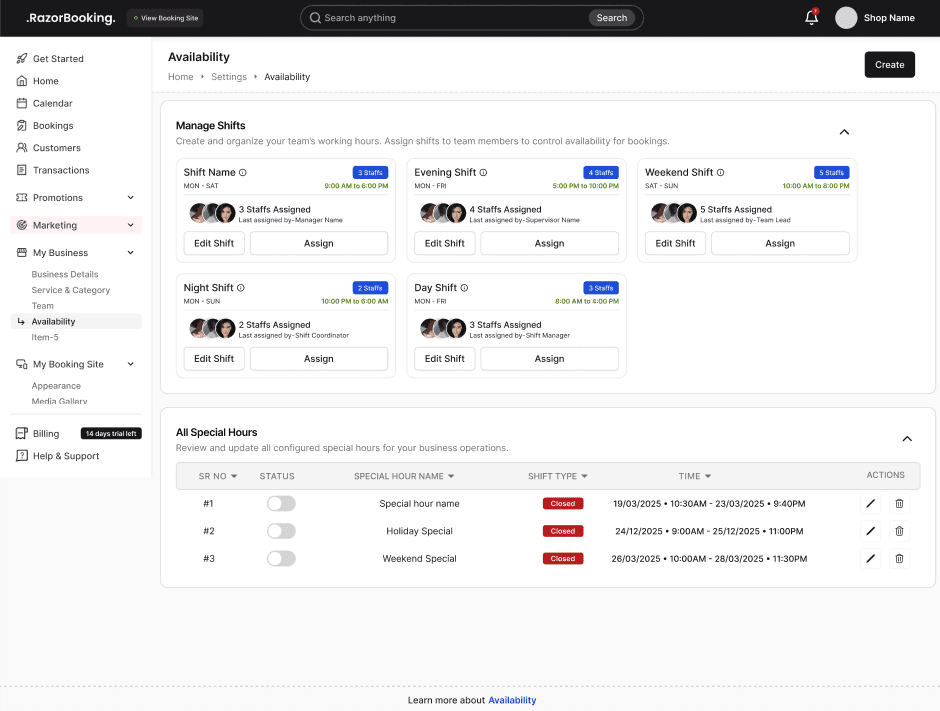
This page consists of two main sections:
Shifts
Regular weekly working schedules used by your business and team members.
Special Hours
Temporary schedule changes that override regular shifts for specific dates, holidays, events, maintenance periods, or exceptional business hours.
Availability settings directly affect booking availability across your business.
Fig: Availability Page
Default Setup
When a new business is created:
A default shift is automatically generated
Default schedule:
Monday to Friday
9:00 AM – 6:00 PM
You can edit, replace, or delete this shift at any time.
What You Can Do Here
Using the Availability page, you can:
Create shifts
Edit shifts
Delete shifts
Assign team members to shifts
Create special hours
Enable or disable special hours
Manage business working hours
Control booking availability
Override schedules for holidays and events
Shift Management
Shifts represent your regular weekly business hours.
Each shift contains:
Shift Name
Weekly Schedule
Working Days
Time Blocks
Assigned Team Members
Each shift card provides:
Assign Team Members
Edit Shift
Delete Shift
A. Create a Shift
The Create Shift form allows you to define recurring weekly availability.
Left Side – Shift Details
Enter a clear shift name such as:
Morning Shift
Evening Shift
Weekend Shift
Split Shift
The shift name helps identify the schedule throughout the system.
Right Side – Weekly Business Hours
The schedule displays all seven days of the week.
For each day you can:
Open or Close the Day
Checked = Open
Unchecked = Closed
Closed days will not accept bookings.
Add Multiple Time Blocks
Examples:
9:00 AM – 12:00 PM
2:00 PM – 6:00 PM
Multiple blocks are useful for:
Lunch breaks
Split shifts
Partial-day schedules
Edit Time Blocks
Modify start and end times as needed.
Remove Time Blocks
Delete unnecessary time ranges.
How to Create a Shift
Open the Availability page
Click Create
Select Create Shift
Enter a shift name
Configure weekly business hours
Review all days and time ranges
Click Save
The shift will immediately appear in your availability list.
B. Assign Team Members
Each shift can have multiple team members assigned.
Important Rules
Multiple team members can belong to the same shift
A team member can only belong to one shift at a time
Shift assignments control staff booking availability
To assign staff:
Open the shift card
Click Assign
Select team members
Save changes
C. Edit a Shift
The Edit Shift modal allows you to update existing shift information.
You can modify:
Shift Name
Open/Closed Days
Time Blocks
Weekly Schedule
How to Edit a Shift
Open the Availability page
Locate the shift card
Click Edit
Update the required information
Review the schedule
Click Save
Changes are applied immediately.
What Happens After Editing
Business availability updates instantly
Assigned team member availability updates automatically
Future booking slots reflect the updated schedule
D. Delete a Shift
Deleting a shift permanently removes it from your availability settings.
Important Rule
A shift cannot be deleted if team members are assigned to it.
Before deleting:
Open Assign
Remove assigned team members
Optionally move them to another shift
Once no staff are assigned, the shift can be deleted.
How to Delete a Shift
Open the Availability page
Locate the shift card
Remove assigned staff
Click Delete
Confirm deletion
The shift will be permanently removed.
What Happens After Deletion
The shift disappears from the availability list
Special Hours remain unchanged
Team members must be assigned to another shift
Future availability follows remaining active shifts
Special Hours Management
Special Hours allow you to temporarily override normal shift schedules.
Use Special Hours for:
Public holidays
Festival closures
Maintenance periods
Extended working hours
Emergency closures
Temporary schedule adjustments
Important: Special Hours always take priority over shifts.
A. Create Special Hours
Special Hour Types
Extend Hours
Temporarily increases business availability.
Examples:
Festival Hours
Weekend Extension
Special Event Hours
Closed Business
Temporarily closes the business.
Examples:
Public Holiday
Maintenance Day
Emergency Closure
Basic Information
Name
Examples:
Holiday Closure
Diwali Hours
Maintenance Window
Extended Weekend
Start Date & End Date
Choose when the special hours should apply.
Start Time & End Time
Set the exact hours.
For full-day closures, use the entire day.
Apply To
Choose where the special hour applies:
All Shifts
Applies to every shift in the business.
Specific Shifts
Applies only to selected shifts.
Example:
Close Evening Shift
Keep Morning Shift Open
Is Active
Controls whether the special hour is currently applied.
Enabled
Special hours immediately affect availability.
Disabled
Special hours remain saved but inactive.
Existing Booking Handling
When bookings already exist during the affected period:
Keep Existing Bookings
Existing bookings remain unchanged.
Only new bookings follow the special hour rules.
Cancel Existing Bookings
Bookings within the affected period are automatically canceled.
Use this option for:
Business closures
Emergency shutdowns
Holiday closures
How to Create Special Hours
Open the Availability page
Click Create
Select Create Special Hour
Choose the type:
Extend Hours
Closed Business
Enter the special hour details
Select affected shifts
Choose booking handling behavior
Click Save
The special hour will immediately appear in the list.
B. Special Hours List
Special Hours are displayed in a table on desktop and cards on mobile.
Information shown includes:
Name
Status
Type
Start Date & Time
End Date & Time
Actions
Available actions:
Enable / Disable
Delete
C. Delete Special Hours
Special Hours cannot be edited after creation.
To make changes:
Delete the existing Special Hour
Create a new one
How to Delete Special Hours
Open the Availability page
Locate the Special Hour
Click the Delete icon
Confirm deletion
The special hour is permanently removed.
Rules & Important Notes
Special Hours always override shifts
Team members can only belong to one shift at a time
Multiple staff can share the same shift
Shifts cannot be deleted while staff are assigned
Time blocks should never overlap
Special Hours cannot be edited after creation
Deleted shifts cannot be restored
Deleted Special Hours cannot be restored
At least one active shift should exist for bookings to remain available
Tips and Best Practices
Use shifts for recurring weekly schedules
Use Special Hours only for temporary changes
Use clear shift names
Use meaningful names for Special Hours
Create separate shifts for different working patterns
Review staff assignments before deleting shifts
Avoid overlapping time blocks
Review the calendar after making schedule changes
Remove outdated Special Hours regularly
Plan holiday closures in advance
Common Questions
Q. What happens if a Special Hour overlaps with a Shift?
Special Hours always take priority and override the shift schedule.
Q. Can I edit a Special Hour?
No. Delete it and create a new one.
Q. Can I add multiple time ranges on the same day?
Yes. Multiple time blocks are supported.
Q. Can I assign multiple staff to one Shift?
Yes.
Q. Can one staff member belong to multiple Shifts?
No. Each team member can only have one assigned shift at a time.
Q. Why can't I delete a Shift?
One or more team members are still assigned to it.
Q. Does deleting a Shift remove staff?
No. Only the shift is removed.
Q. Can I temporarily disable a Special Hour?
Yes. Use the Is Active toggle.
Q. Do Special Hours affect existing bookings?
Only if you choose Cancel Existing Bookings during creation.
Q. Can I restore a deleted Shift or Special Hour?
No. Both must be recreated.
Related Pages
Need Help
If you need assistance, contact our support team or use the in-app chat.
