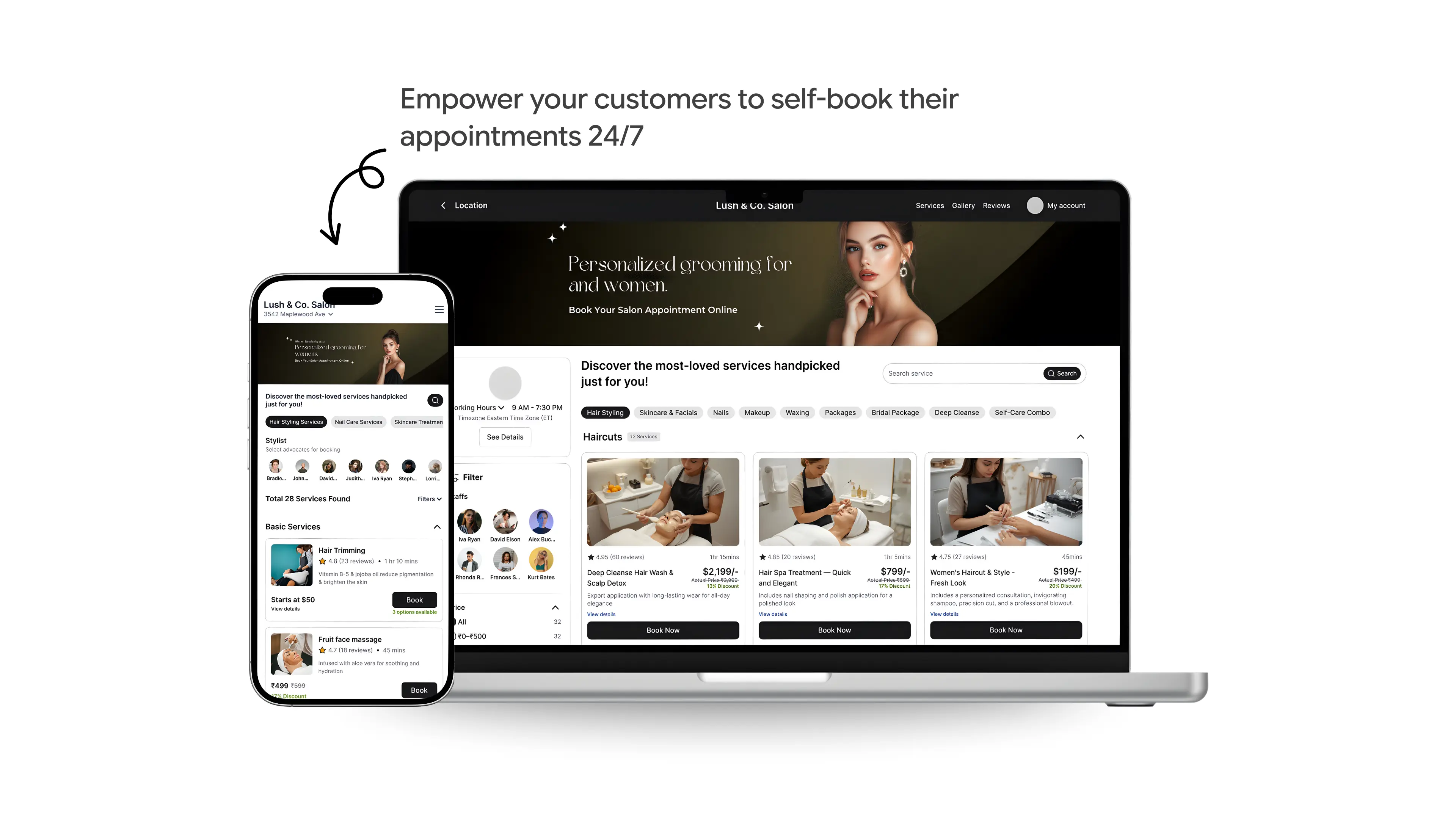
No website? You can still take online bookings. Set up a booking link in 5 steps and share it on Instagram, WhatsApp, Facebook, Google and a QR code.
Not every business has a website, and that's completely fine. Plenty of tutors, coaches, consultants, trainers and other service providers run successful businesses entirely through social media, WhatsApp and word of mouth.
But here's the problem: when clients can't book online, they have to call, text or DM you. Then you have to reply, check your calendar, confirm and hope nothing clashes. That back-and-forth eats hours every week.
The good news? You don't need a website to accept online bookings. In this guide, you'll learn exactly how to set up a professional online booking system, even if you've never built a web page in your life.
The short answer: sign up for a booking tool, add your services and working hours, and it gives you a booking link: a page of its own where clients pick a time and book. Share that link in your Instagram bio, WhatsApp replies, Facebook page, Google Business Profile and on a QR code, and turn on automatic reminders.
What is online booking, and why does it matter?
Online booking means giving clients a link they can tap to choose a service, pick a time slot and confirm their appointment, all without calling or messaging you first.
It matters because clients expect it to be easy. If booking you means a phone call during business hours, some of them will book with someone who lets them do it in a minute at 10 PM instead. In a 2025 industry survey of 1,733 people, back-and-forth coordination was the number one scheduling headache for small businesses (41%). Online booking removes most of it. For the full picture, see the hidden cost of phone tag.
The myth: "I need a website to accept online bookings"
This is the misconception that keeps many small business owners stuck with manual scheduling. A website and an online booking system are two separate things.
A booking tool gives you a shareable booking link: a web address you can paste anywhere. Your Instagram bio, a WhatsApp message, your Facebook page, a printed flyer with a QR code, your email signature. Clients tap the link, pick a time, and they're done.
No website required. No coding. No technical skills.
How to add online booking without a website: 5 steps
Follow these five steps and you can have a working booking link ready to share today.
Step 1: Choose a booking tool that works without a website
Pick a scheduling tool built for small service businesses, one that gives you a booking page of your own. Look for:
A shareable booking page with your business name in the link
Automatic confirmations sent to clients as soon as they book
Calendar sync with Google or Outlook, so you never get double-booked
Automatic reminders by WhatsApp, SMS or email, to cut no-shows
Easy to manage from your phone, through an app or a mobile-friendly web app
Online payments or deposits, if you want clients to pay when they book
Step 2: Add your services and availability
Once you've signed up, tell the tool what you offer and when you're available. You only do this once. For each service, add:
The service name, such as "1-hour consultation" or "Initial assessment"
How long it takes
The price, if you want to show it
A short description, so clients know exactly what they're booking
Then set your working hours: the days and times you're available, plus breaks and days off. If a service needs setup or cleanup time, add buffer time to it so appointments don't run into each other. The tool hides times that are already booked, so clients only see genuinely free slots.
Step 3: Get your booking link
After setup, the tool creates your booking page, with a link that looks something like this:
yourbusiness.yourbookingtool.com
This is your booking link. Copy it, because you're about to put it everywhere.

In RazorBooking, the booking page is a small website of its own: your services, prices, staff, photos, address, an about section and reviews, with the booking calendar built in. You choose the name in the link, and on Pro or Growth you can connect your own domain later if you buy one. RazorBooking also creates a QR code for the link.
Step 4: Share your booking link everywhere
This is the step that turns a booking page into a steady source of bookings. The more places your link appears, the more people book without messaging you.
Where | How to add your booking link |
|---|---|
In your bio ("Book here ↓") and on Stories with a link sticker | |
In your business profile, your status, and as a reply when people ask about availability | |
Facebook Page | As your page's "Book Now" button, plus a pinned post |
Google Business Profile | Under Bookings, as a booking link |
TikTok | In your bio, once your account is eligible for a bio link |
In your email signature | |
Printed materials | As a QR code on flyers, business cards and your front door or counter |
Voicemail and auto-replies | "The fastest way to book is the link in our Instagram bio" |
The platform-by-platform details are below.
Step 5: Turn on automatic reminders
The last step is automatic reminders. Online bookings are easy to make, which also makes them easy to forget. In a review of 21 studies in BMJ Open, people who got digital reminders were about 25% less likely to miss their appointment.
A good starting schedule:
24 to 48 hours before: the main reminder, with a link to confirm or reschedule
1 to 3 hours before: a short same-day reminder
RazorBooking sends these automatically by WhatsApp, SMS and email, and clients can confirm, cancel or reschedule from the message. For timing tips and ready-made templates, see how to automate appointment reminders.
No website? No problem. RazorBooking gives you a booking page with your own link, a QR code and automatic reminders, and a basic setup takes about 5 minutes. Try it free for 7 days.
Where to share your booking link: platform by platform
Here's how to get the most from each platform you already use. Menu names change often, so if something has moved, search the platform's help center for the feature name.
Add your booking link to your bio with a clear call to action, like "Book your appointment ↓". Add it to Stories with a link sticker, and save a "Book" Story highlight so it's always on your profile.
Instagram also has a "Book" action button for professional accounts, but it only works with booking tools that are official Instagram partners. If your tool isn't one, the bio link and Story stickers do the same job.
When a client messages asking about availability, skip the back-and-forth and reply with your link. Add it to your WhatsApp Business profile and status too. If you use WhatsApp Business, save your booking reply as a quick reply so you can send it in one tap.
Facebook Pages let you add an action button at the top of your page. Choose "Book Now" and point it to your booking link. Pin a post with the link too, so it's the first thing visitors see.
Google Business Profile
A Google Business Profile is free, and it's where many local clients find you. In your profile, open Bookings and add your booking page as a booking link. When someone searches for your business, the link appears on your listing in Search and Maps.
Google also has a featured "Book" button that only works with booking tools connected to Google. RazorBooking connects to Google as a booking channel, so clients who find you on Google can book you there.
TikTok and LinkedIn
TikTok only allows a clickable link in your bio once your account is eligible: at the time of writing, 1,000 followers, or a registered business account. Until then, put the link in your Instagram bio and tell TikTok viewers where to find it. On LinkedIn, add the link to your profile's website field or your Featured section.
Printed materials and QR codes
Turn your booking link into a QR code and put it on business cards, flyers, receipts and a sign at your counter or door. Someone walking past can scan it and book on the spot. RazorBooking creates a QR code for your booking link.
Copy-paste replies with your booking link
Replace anything in [brackets] with your own details.
When someone asks "Do you have any openings?"
"Hi [Name]! You can see all my open times and book straight away here: [Link]. If none of them work, let me know and I'll see what I can do."
When someone asks about price
"Hi [Name], [Service] is [Price] and takes about [Duration]. You can pick a time and book here: [Link]"
When you're replying late
"Sorry for the slow reply, I was with clients! Next time you can book any open slot here, any time of day: [Link]"
Instagram auto-reply or pinned comment
"Bookings are open! Tap the link in our bio to pick a time."
Voicemail greeting
"Hi, you've reached [Business]. I'm probably with a client right now. The fastest way to book is online, using the link on our Instagram or Google listing. Otherwise, leave a message and I'll call you back."
Tip: if you offer several services, share the link to the specific service the person asked about, if your tool lets you. Every extra tap loses some people.
What a good booking page shows
When your booking page is your only page, it has to answer the questions a website would. Check yours has:
Your business name and a photo or logo, so clients know they're in the right place
Every service with its length and price
Your address, or a note that the session is online or at the client's home
Who they'll see, if you have staff
A short "about" line and a few reviews, for clients who don't know you yet
Your cancellation policy, shown before they confirm
A way to contact you for questions
Common mistakes to avoid
Not syncing your personal calendar. Clients book into time you've already promised elsewhere, and you get double-booked. See how to stop double bookings.
Forgetting to set working hours and time off. Clients see availability you don't really have.
Sharing the link once. Mention it regularly in your posts, Stories and replies.
Skipping reminders. Forgetting is one of the most common reasons for no-shows.
Leaving the page half-finished. No prices, no address and no photo make new clients hesitate.
Still confirming every booking by hand. If clients still have to wait for your reply, you've kept the back-and-forth you were trying to remove.
Frequently asked questions
Can I really take online bookings without a website?
Yes. A booking tool gives you a booking page with its own link. You share that link wherever your clients already are, such as Instagram, WhatsApp, Facebook, Google or a text message. No website needed.
Is online booking expensive for a small business?
It doesn't have to be. Some tools have free plans with limits, such as one calendar, email-only reminders or the tool's branding. Google Calendar's free booking page is one example. Paid plans usually start around $10 to $20 a month. RazorBooking Solo is $15 a month on yearly billing for 3 team members, with a 7-day free trial. It doesn't have a free plan. Email reminders are unlimited, and Solo includes 100 WhatsApp or SMS messages a month.
What if my clients aren't tech-savvy?
Booking pages are designed to be simple: tap a service, pick a time, enter a name and number, confirm. If they can use WhatsApp, they can use a booking page. You can still take phone bookings for anyone who prefers to call and add them to the same calendar.
Will I get notified when someone books?
Yes. Booking tools notify you as soon as a client books. RazorBooking notifies you by email and WhatsApp.
Can I take payments through my booking link?
Many booking tools let clients pay in full or pay a deposit when they book, or pay at the appointment. A deposit also makes clients more committed to showing up. See how to reduce no-show appointments.
What if I get a website later?
Your booking link keeps working. Add a "Book now" button on the new site that points to it, so all your bookings still land in one calendar.
Conclusion
Not having a website isn't a barrier to running a professional, fully booked service business. With the right booking tool, you give clients an easy way to book, cut out the admin of manual scheduling, and get hours back every week, all from your phone.
The process is simple: choose your tool, set up your services, get your booking link, share it everywhere your clients already are, and turn on automatic reminders.
The businesses that win aren't the ones with the fanciest websites. They're the ones that make it easiest for clients to say yes.
Ready to take your first online booking today?RazorBooking gives you a booking page with your own link and QR code, and a basic setup takes about 5 minutes. No website, no tech skills. Start your 7-day free trial, no credit card needed.
Related reading:How to stop double bookings · How to automate appointment reminders · How to reduce appointment no-shows · Signs you've outgrown manual appointment scheduling
Sources
WRITTEN BY

RazorBooking team
We build RazorBooking and write about bookings, payments and running a service business.