


Group services so customers find them faster.
What This Page Is About
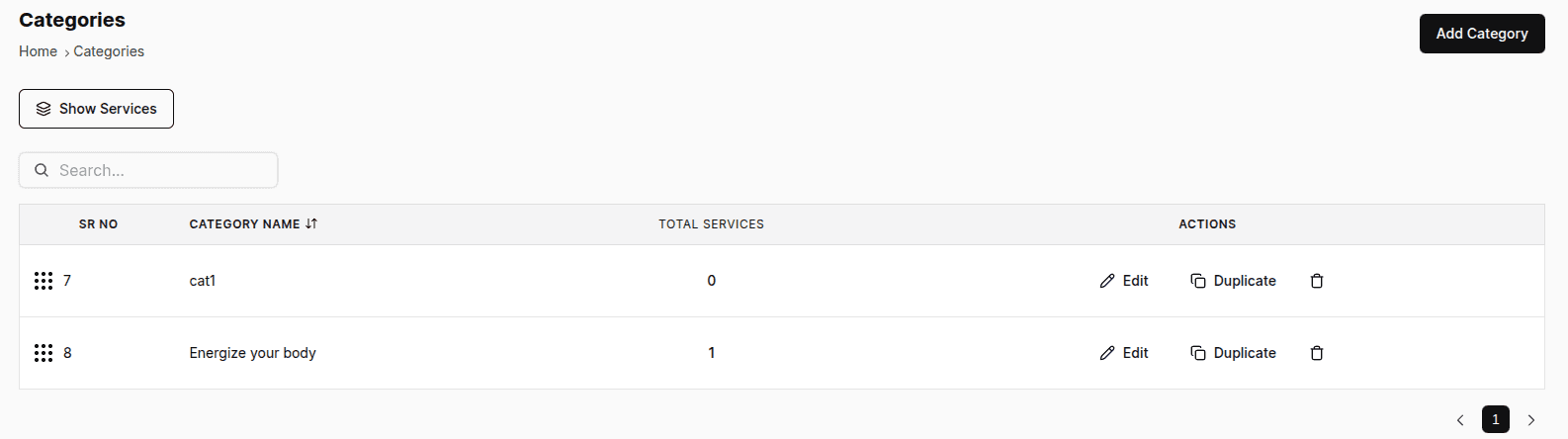
This page displays and manages all the categories used to organize your services.
If no categories exist, you will see a first-time card allowing you to add your first category.
If categories are present, you will see an Add Category button on the top-right.
All categories appear in a table showing:
Category Name
Total Services assigned to that category
Actions: Edit, Delete, Copy
A search bar helps you quickly find specific categories.
When You Should Use This Page
Use this page when:
You want to create new categories for your services
You need to rename or update existing categories
You want to organize services into clean groups
You want to duplicate a category setup
You want to remove categories that are no longer needed
What You Can Do Here
On this page, you can:
Add a new category
Edit an existing category
Copy an existing category
Delete a category
View how many services belong to each category
Search categories by name
How It Works
A. How to Create a Category (Modal)
Go to the Categories page
Click the Add Category button
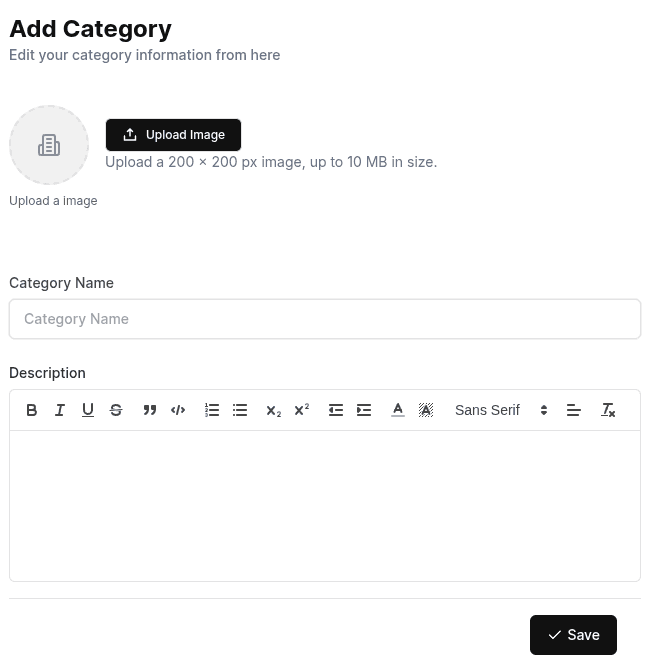
A Create Category Modal will open
Fill in the fields:
Category Image (optional)
Category Name (required)
Description (optional)
Click Save to create the category
B. How to Edit a Category (Modal)
Open the Categories page
Find the category you want to update
Click the Edit icon (pencil)
The Edit Category Modal will open with all fields pre-filled
Update the image, name, or description
Click Save to apply changes
C. How to Copy a Category
Locate the category in the category table
Click the Copy icon
A new category will be created with the same details
Update it in the modal if needed before saving
D. How to Delete a Category
Go to the Categories page
Find the category you want to remove
Click the Delete icon (trash)
Confirm the deletion
The category will be permanently removed
Tips & Best Practices
Use clear, simple category names (e.g., “Hair Care”, “Consultation”, “Home Services”).
Categories help customers filter services easily — organize them well.
Use category images only if they truly add value (images are optional).
Keep descriptions short and meaningful.
Avoid creating duplicate categories — use the search bar first.
Common Questions
Q. Can I create a category without a description or image?
Yes, only the category name is required.
Q. What happens if I delete a category?
The category is removed, but the services remain — they simply lose that category tag.
Q. Can a service belong to multiple categories?
Yes, and you can assign categories from the Create/Edit Service page.
Q. Does copying a category copy its image and description?
No, just the description and name will be copied not the image
Related Pages
Services – Assign categories to services
Team Members (if category is related to grouping by staff roles)
