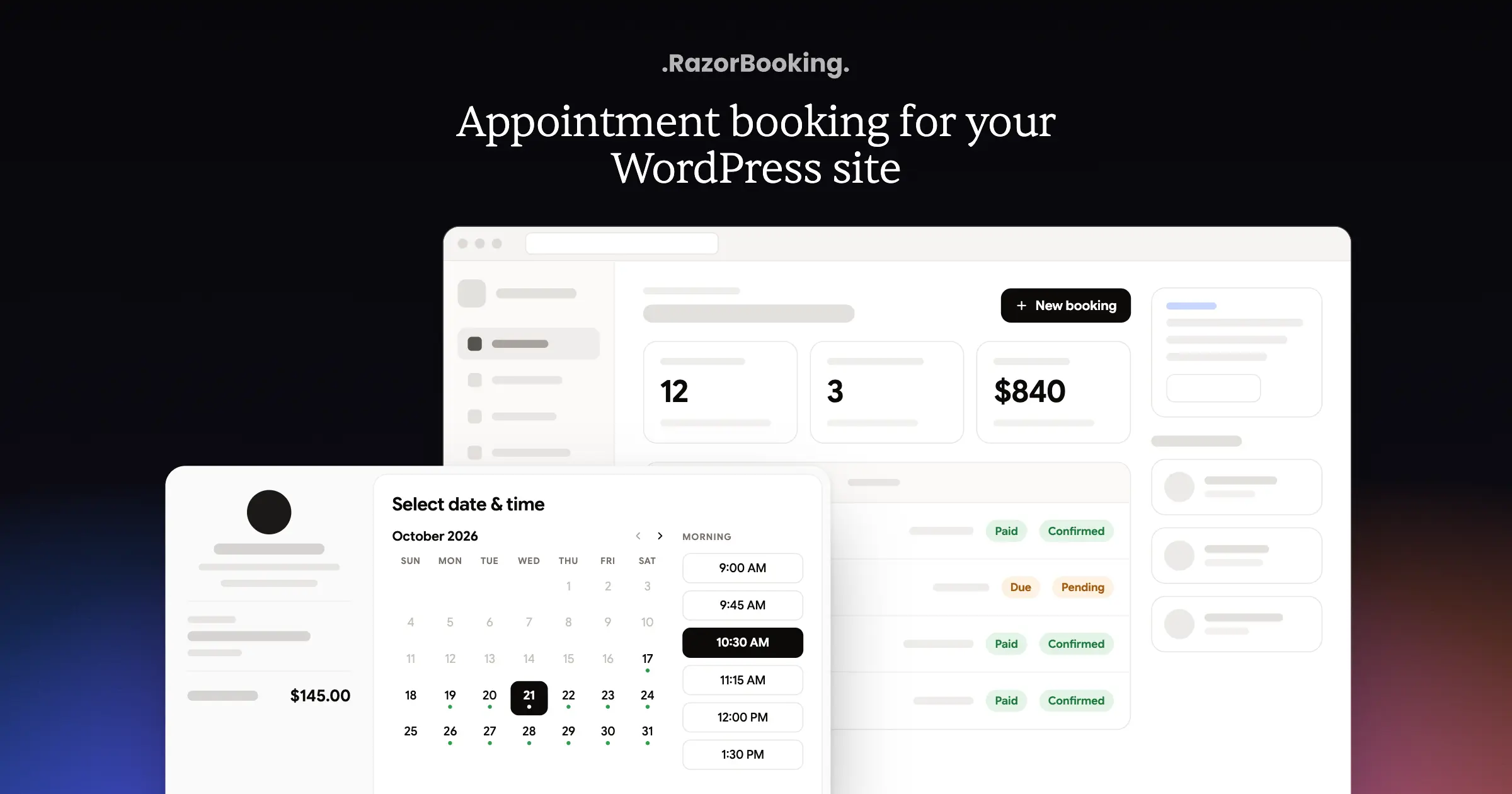
The RazorBooking plugin is live on WordPress.org. Customers choose a service, a team member and a time on your site, and pay a deposit or the full price when they book.
RazorBooking's WordPress appointment booking plugin is now live on WordPress.org. Customers choose a service, a team member and a time on your own pages, and pay online when they book.
Your services, team members, hours and prices live in your RazorBooking account. You set them up once, and they show on your WordPress site, your booking page and your calendar at the same time.

What the RazorBooking plugin adds to WordPress
You get five blocks, and each one also works as an Elementor widget and as a shortcode.
Booking form. Offer every service, a category. You can also tie the form to one team member.
Reviews. Show the reviews customers left on your booking page.
Gallery. Show the photos from your booking page.
FAQ. Show the questions and answers from your booking page.
My bookings. Customers see their bookings on your own site.
A Booking confirmation block puts the booking reference on your own thank-you page. A floating Book now button can follow visitors across your site. You choose where it appears, and you can hide it on pages that already show a booking form.
Install the plugin in WordPress
Open Plugins → Add New in your WordPress admin. Search for RazorBooking, click Install, then Activate.
Click Start setup in the banner, or choose RazorBooking from the admin menu.
Sign in to RazorBooking, or create an account. Pick the business this site belongs to and confirm.
Place the Booking form block, the Elementor widget or the
[razorbooking]shortcode on any page.
On the Design screen, pick your colors, font and corner style. The preview updates as you change them, so the form, buttons and popup match your theme before you publish.
Show booking on a page or in a popup
The Booking form can appear in four places:
Inside a page, between your other content.
In a popup that opens from a button.
Behind a button that opens your RazorBooking booking site.
In a floating Book now button that stays in the corner of the screen.
Reviews, Gallery and FAQ can open from a button too. If you also run a site on another builder, the booking widget offers the same options there.
Take a deposit or the full price at booking
Checkout has four steps: service, date and time, the customer's details, and payment. At the last step, customers choose a deposit or the full price, then pay by card with Stripe or with PayPal.

With online payments, choose what customers pay at booking: the full amount, a deposit such as 25%, or nothing until the appointment. You can turn on tips and a late cancellation fee. Cash you take at the counter goes into the same transactions list as online payments.

RazorBooking charges zero commission on bookings. Stripe and PayPal processing fees still apply.
Send reminders by AI call, WhatsApp, SMS and email
Reminders go out automatically. Build a schedule, for example 24 hours, 2 hours and 30 minutes before the appointment, and pick a channel for each step. Send them to the customer, the team member or both. Customers can confirm or reschedule straight from the reminder, and you can edit the wording of every automatic reminder.

See every booking in one calendar
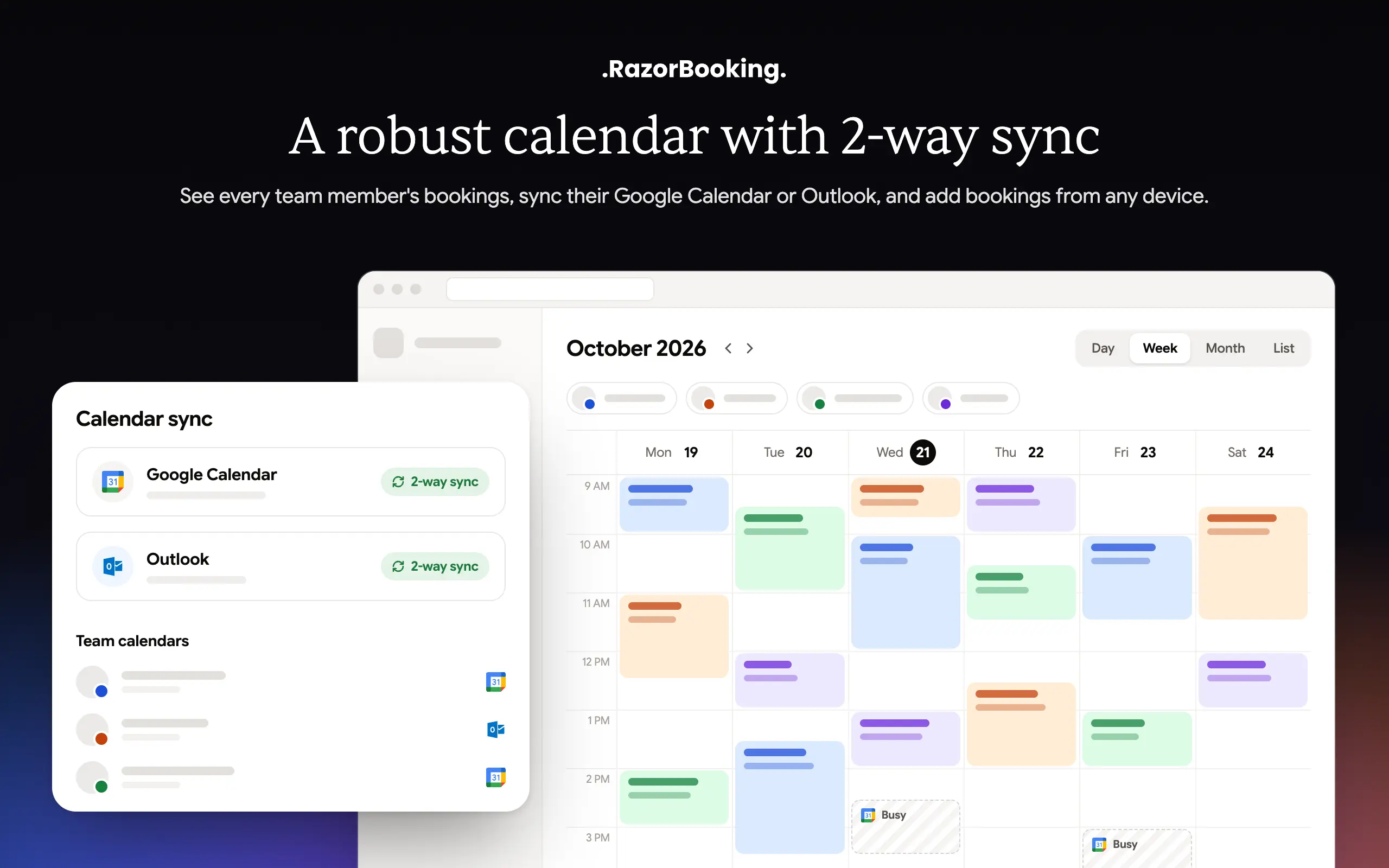
Bookings made on your WordPress site appear next to bookings from your booking page and the ones you add yourself. Each team member can connect Google Calendar or Outlook with two-way sync. Their busy times block those slots on your site, and moved or canceled bookings update in both calendars. Read how the RazorBooking calendar works for a team.
Add an AI receptionist and an AI voice agent
Both are optional. The AI receptionist answers calls to your business number and books appointments. The AI voice agent talks with visitors on your booking page, so they can book by voice. You decide what each one is allowed to book, and every call and conversation is saved in your dashboard. Hear a demo on the AI voice agent page.

Keep bookings and customer details in RazorBooking
RazorBooking stores the bookings, customer details and payments. WordPress keeps only a copy of public business details, such as services, hours and team, so pages load without a call to RazorBooking.
If your site loses its connection to RazorBooking, the booking area stays hidden and site admins get a notice with the reason. You can also choose when booking loads: after visitors accept cookies, or when they click a booking button.
Add business structured data to your pages
Turn on structured data and the plugin adds details such as your address, opening hours, services with prices, team and FAQs to your pages. Search engines read them from your own domain.
Already using Yoast or Rank Math? RazorBooking notices and leaves its own business data off. To use RazorBooking's version, switch off the business schema in your SEO plugin first.
Use RazorBooking with Elementor, Divi and WordPress themes
Block editor: insert the blocks into any page or post.
Elementor: find every block in the RazorBooking widget group.
Sidebars and footers: add the blocks under Appearance → Widgets.
Divi, Beaver Builder, WPBakery or a classic theme: paste a shortcode. The Embed button on each item writes it for you.
You need WordPress 6.4 or later and PHP 7.4 or later. Buttons, cards and the popup meet WCAG 2.1 AA: visitors can book with only a keyboard, and screen readers announce every control.
Plugin and plan pricing
The WordPress appointment booking plugin is free, and every feature in it is unlocked. It connects to a RazorBooking account, which is paid. Plans are $19, $39 or $59 a month for your whole business, and every plan has a 7-day free trial. Each account includes a hosted booking site on the same calendar, ready to share on Google, Instagram and in messages. Compare the plans on our pricing page, and see how RazorBooking booking pages work.
Questions about the WordPress plugin
Do I need to write any code?
No. Add the Booking form block or the Elementor widget like any other element. For other page builders, the Embed button creates the shortcode to paste.
Does the booking form slow down my pages?
Pages use the business details stored in WordPress, so they don't wait on RazorBooking. If a speed plugin or Cloudflare Rocket Loader delays scripts, add /embed/widget.js, razorbooking-public and razorbookingEmbed to its exclusions.
What do customers see after they book?
A booking confirmation by default. You can send them to your own thank-you page instead and place the Booking confirmation block there to show their booking reference.
Can my site menu have a Book now link?
Yes. Put the page with your booking form in the menu like any other page. Or point a custom menu link at your hosted booking site.
Why doesn't my site show a change I made in RazorBooking?
The booking form, reviews, gallery and FAQ always show the latest version. Other details come from the copy stored in WordPress, so click Sync on the RazorBooking screen to refresh it.
Add booking to your WordPress site today
Download RazorBooking from WordPress.org, connect your account, and add the Booking form to a page. New to online booking? Start with what a booking website does.
WRITTEN BY

RazorBooking team
We build RazorBooking and write about bookings, payments and running a service business.